
Introduction
In Forrit One, there are a few ways to preview content changes before releasing them to production.
You might do this to review someone else’s changes, to check your own work, or simply to share ideas with others. The following tutorial explains the different ways you can preview Forrit One content.
Overview
There are three ways to preview content:
-
In the CMS, in the Page Editor
-
In staging environments
-
In the Preview App
In this tutorial, you’ll learn when and why you might use these different methods.
In the Page Editor
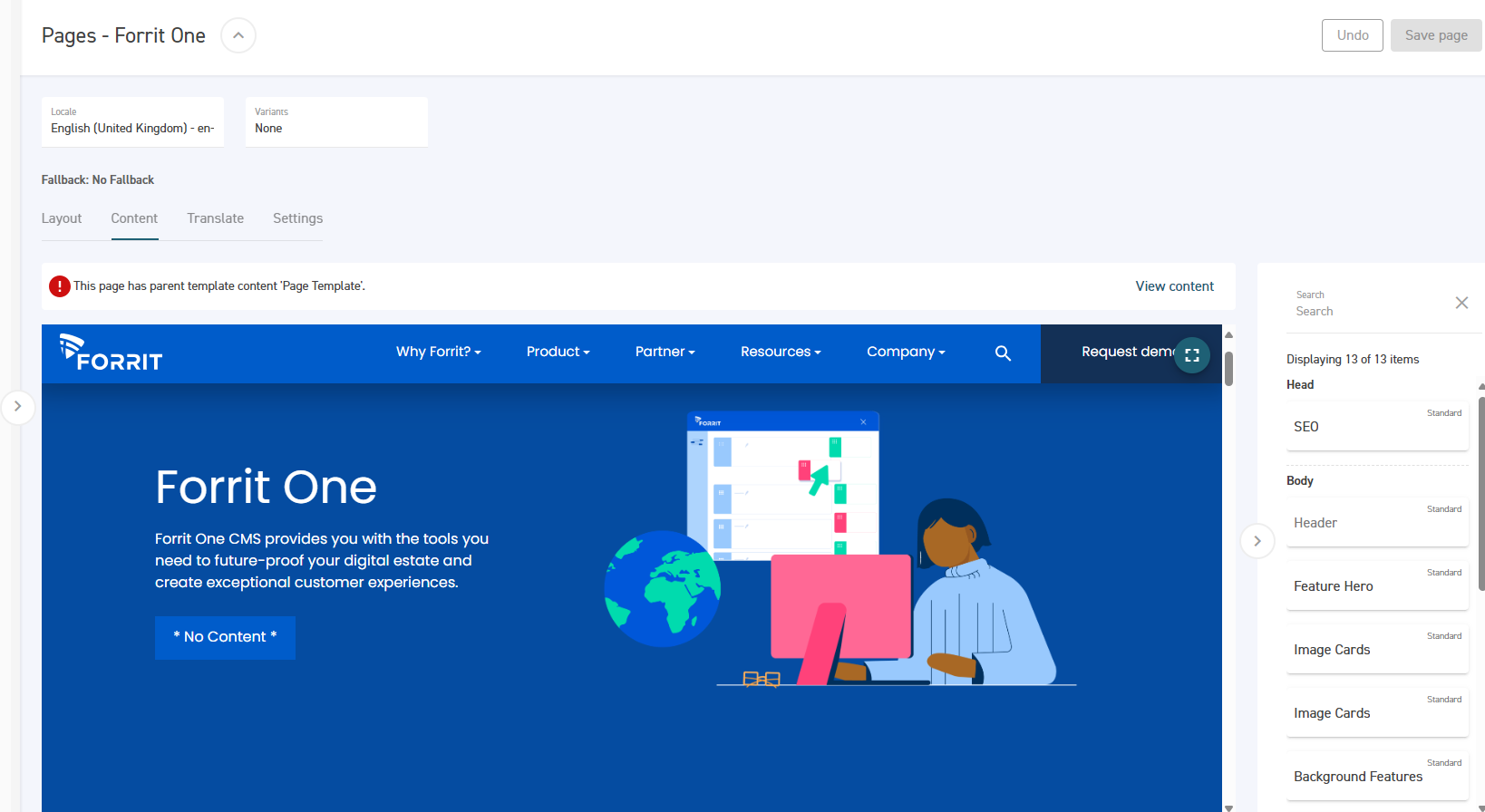
The Page Editor is the first port-of-call to preview content. Use the Preview tab to see what a Page will look like. You can easily switch between different Locales and Variants to view localisations and other variations. Additionally, you can change Task to see how content appears in other streams of work.
However, you won’t have working hyperlinks, and third-party integrations won’t be up and running like in your staging and production environments.
The Page Editor is an easy way to review content while you work, but it isn’t an accurate reflection of how content will appear in production environments.
Pros
-
Accessible in the CMS
-
Previewable without publishing a Release
-
Easy to preview content in different Tasks
Cons
-
No working hyperlinks
-
No third-party integrations
-
Not shareable without a CMS login
-
Content may change while being viewed
In staging environments
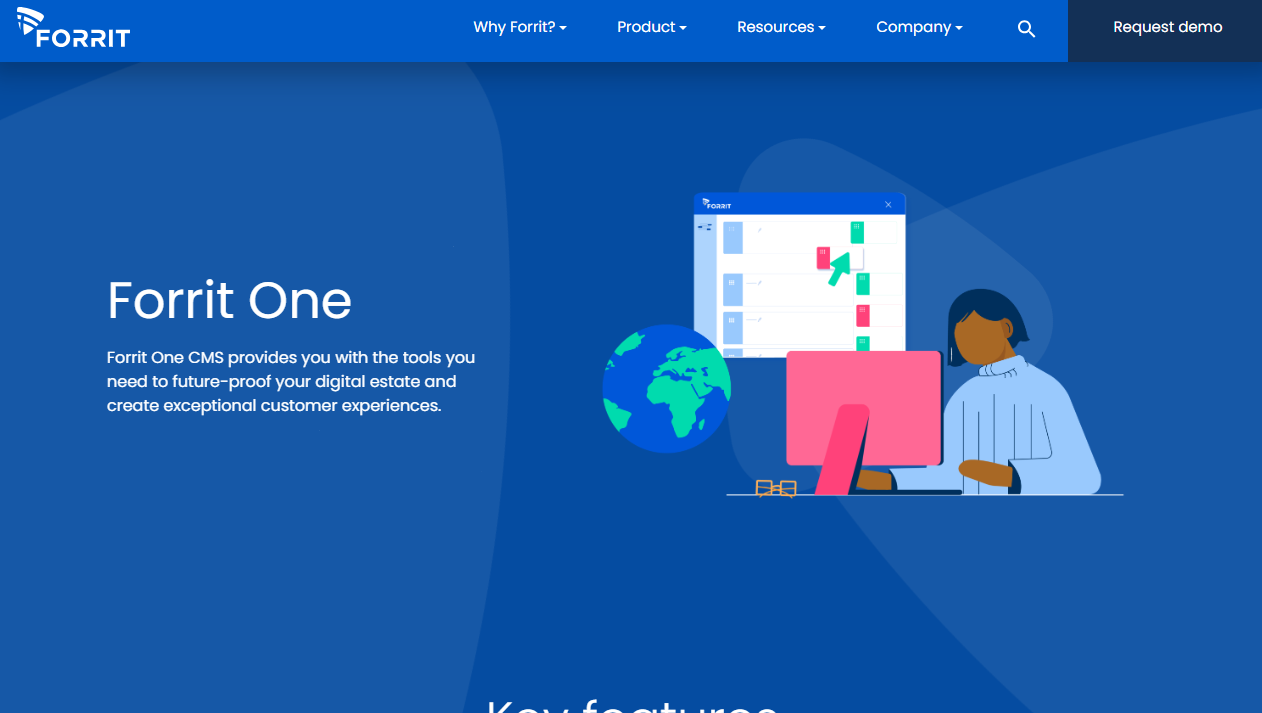
Staging environments are the gold standard for previewing and reviewing content before publishing. They provide a production-like environment complete with your headless content, hyperlinks, and third-party integrations. The content in a staging environment is also locked down to a particular Release, so it won’t update while you review it.
Nevertheless, there’s usually a limited number of staging environments available, and only one Release can be published at a time to each one. This means only a small number of content changes can be viewed using this method at any one time.
With staging environments, you can feel confident that what you’re seeing is what you’ll get in production. However, these environments are somewhat constrained by resource and process.
Pros
-
Headless content
-
Working hyperlinks
-
Third-party integrations
-
Shareable without a CMS login
-
Content can’t change while being reviewed
Cons
-
Can’t preview different Tasks easily
-
Can’t change the content without publishing a Release
In the Preview App
The Preview App is available with Forrit One version 3.3 and later.
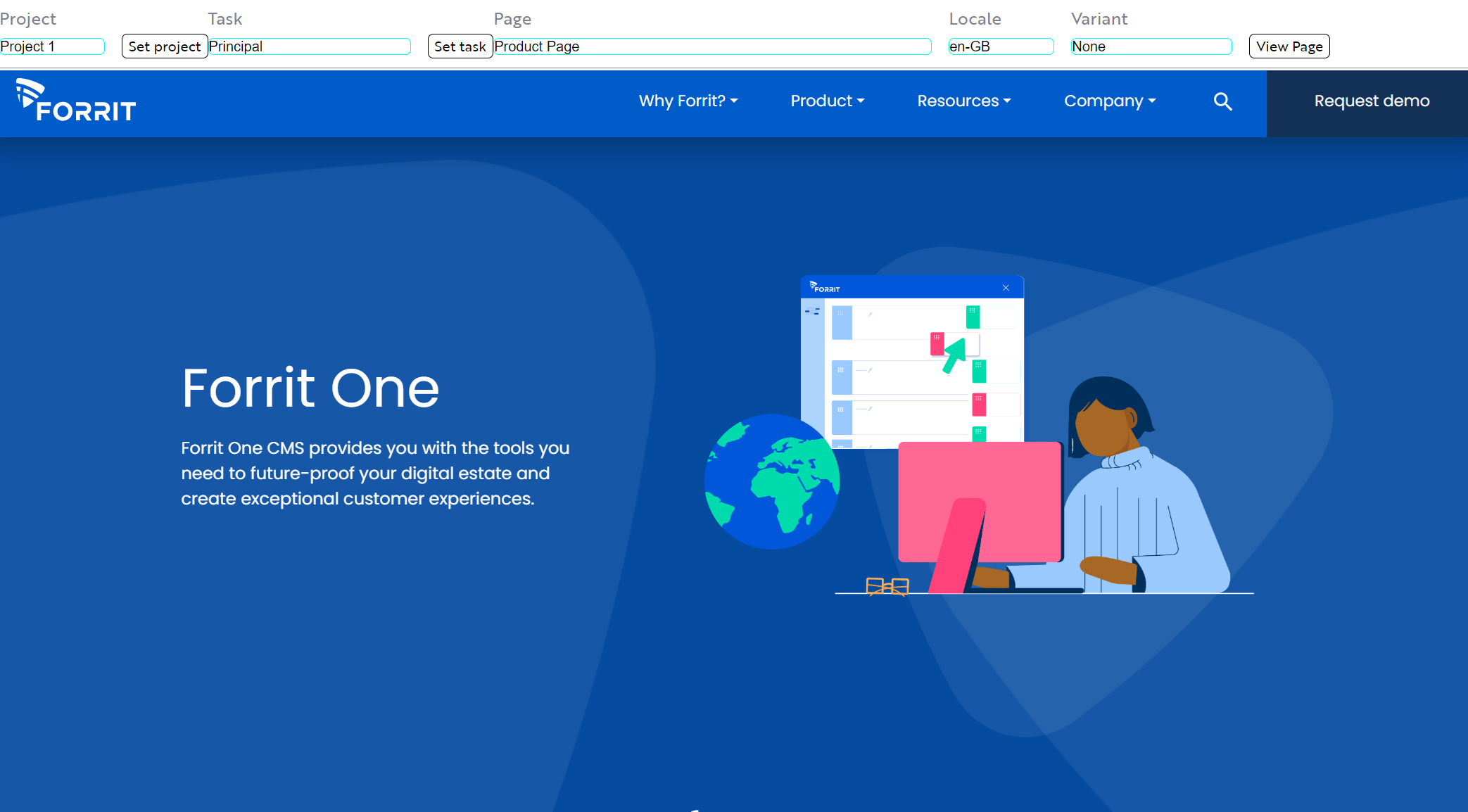
The Preview App is a powerful tool for visualising content changes – including headless content, hyperlinks, and integrations – without the overhead of a staging environment: you don’t need to publish a Release, and you can readily view the content of any Task, Variant, or Locale that you like.
The downside is that the content can change while being viewed – since it’s not locked to a particular Release. Additionally, the Preview App requires developer maintenance to ensure it accurately reflects your production environments.
The Preview App can’t give you the same level of confidence as a staging environment, but it’s a simple way to view and share full-featured changes quickly.
Pros
-
Headless content
-
Working hyperlinks
-
Third-party integrations
-
Shareable without a CMS login
-
Easy to view different Tasks
-
Previewable without publishing a Release
Cons
-
Content may change while being reviewed
-
Developer maintenance required
Preview methods compared
The pros and cons of the different preview methods are summarised below:
|
Preview method |
Headless content |
Hyperlinks |
Third-party integrations |
Shareable (without a CMS login) |
Preview different Tasks easily |
Preview without publishing a Release |
Release snapshot |
|---|---|---|---|---|---|---|---|
|
Page Editor |
no |
no |
no |
no |
yes |
yes |
no |
|
Staging environment |
yes |
yes |
yes |
yes |
no |
no |
yes |
|
Preview App |
yes |
yes |
yes |
yes |
yes |
yes |
no |
Tutorial outcome
In this tutorial you’ve learned:
-
The different ways that Forrit One content can be previewed
-
The advantages and disadvantages of each method
-
When and why you might use each approach