
Instances
Instances view
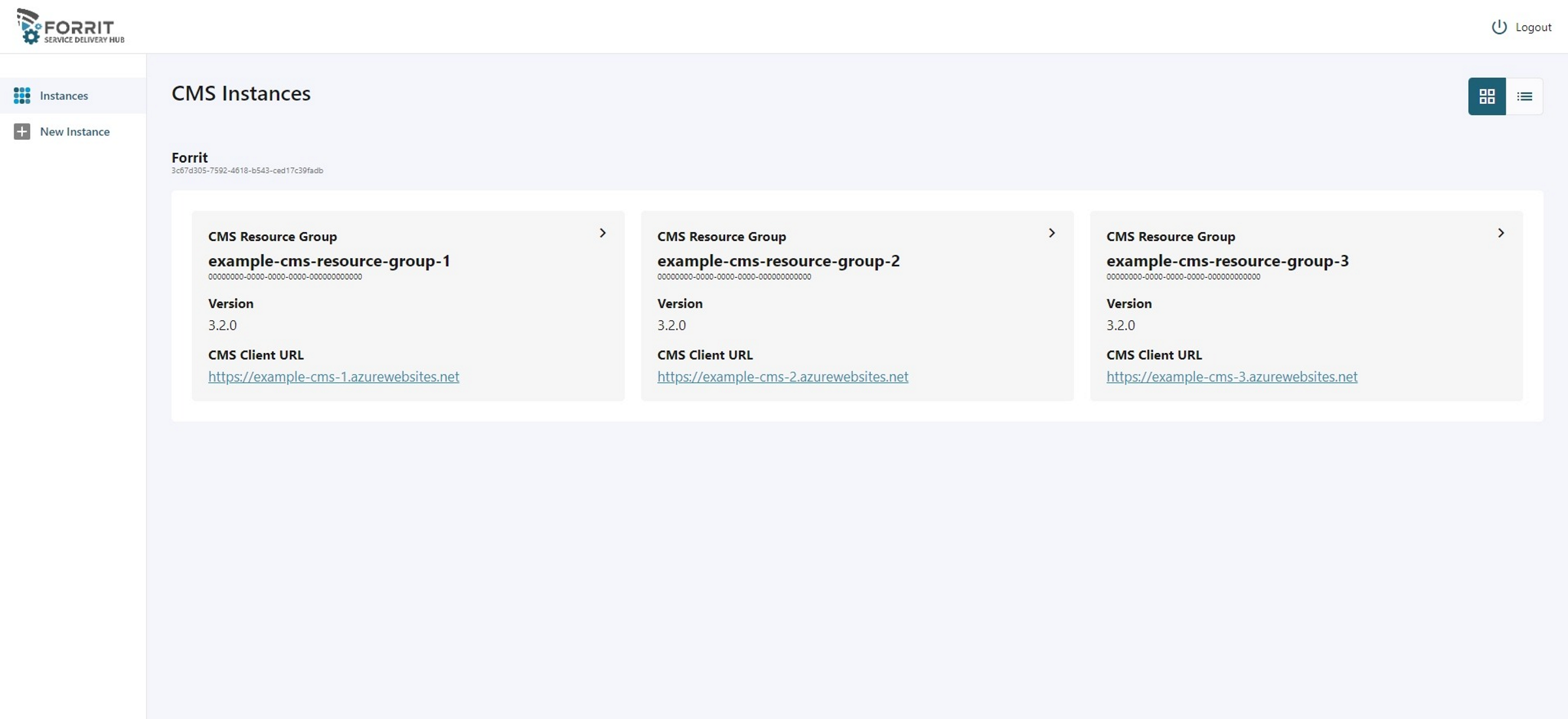
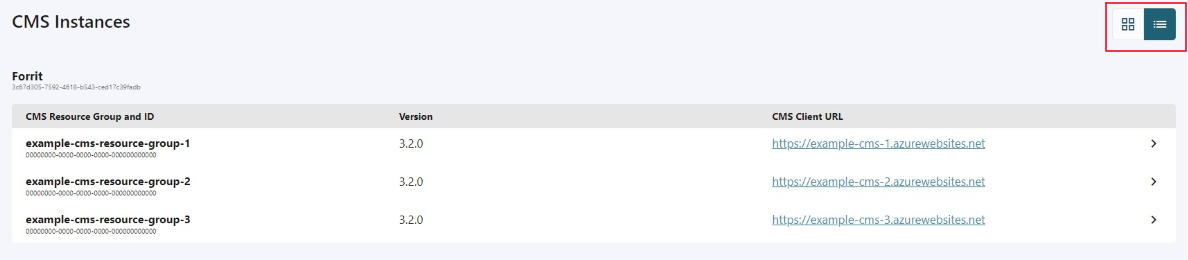
List of all CMS instances created in SDH and grouped by AD Tenants.
You can switch between tile view or list view with the grid toggle.
Instance details view
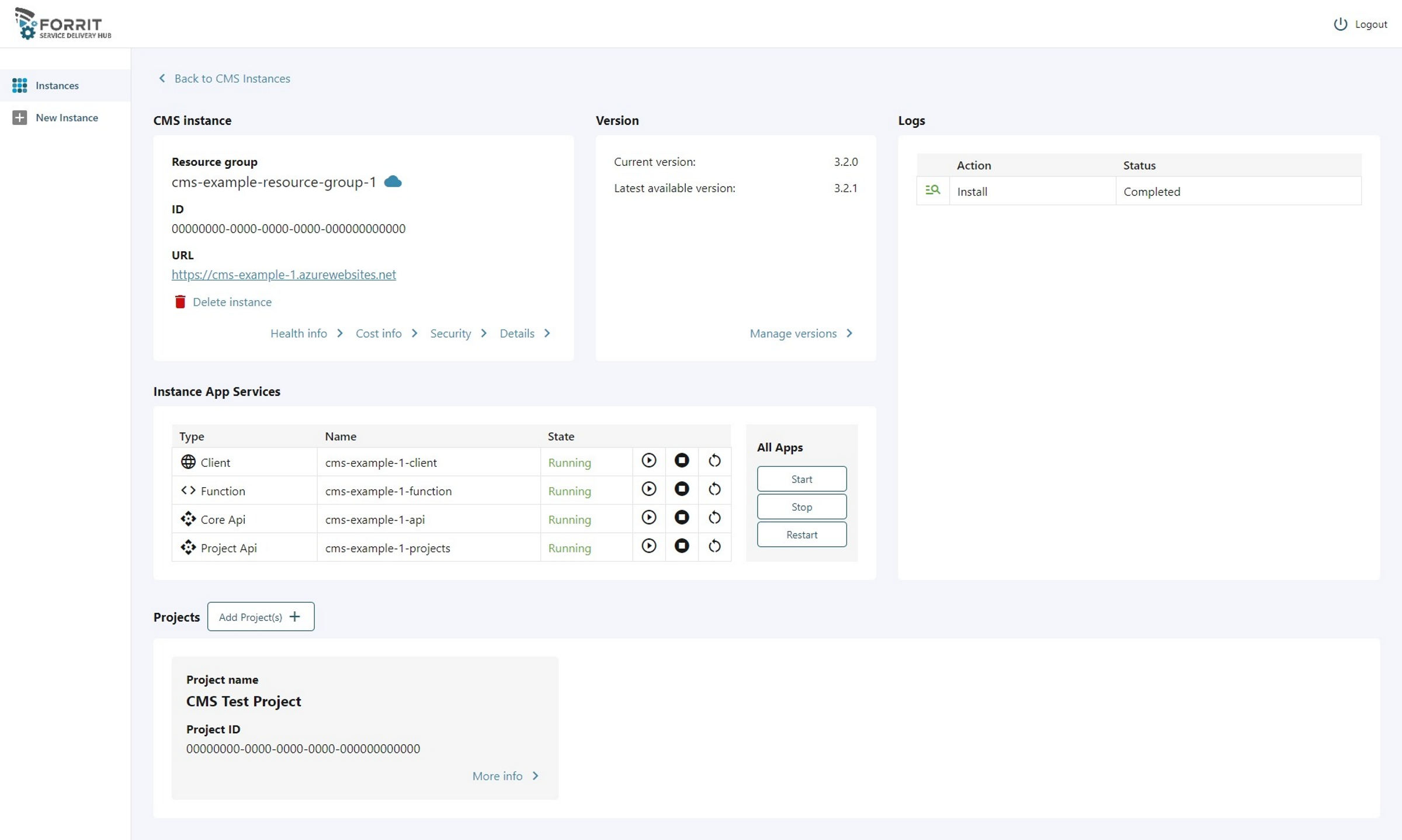
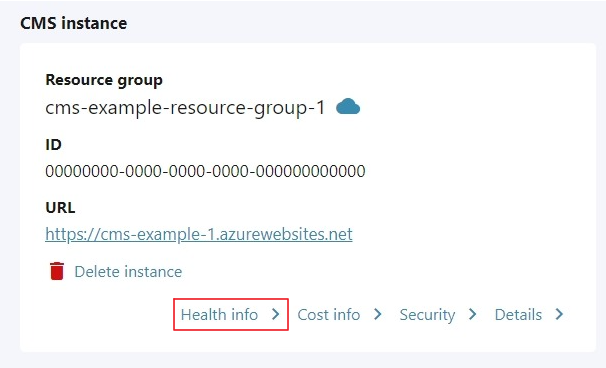
All instance details and controls.
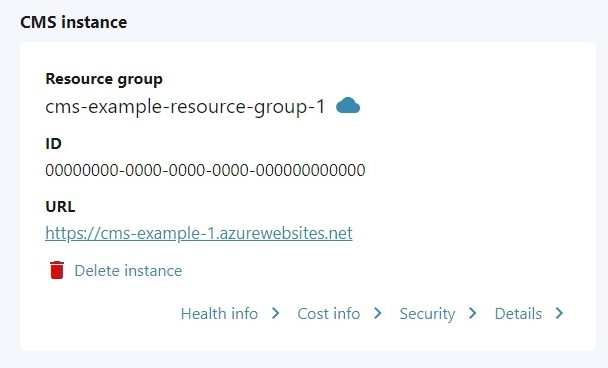
Main information includes:
RG name and a link to the RG in the Azure portal
ID used within SDH
URL of the CMS instance client app
Delete instance button - requires a confirmation and then will delete all resource within the RG and the RG itself.
Details
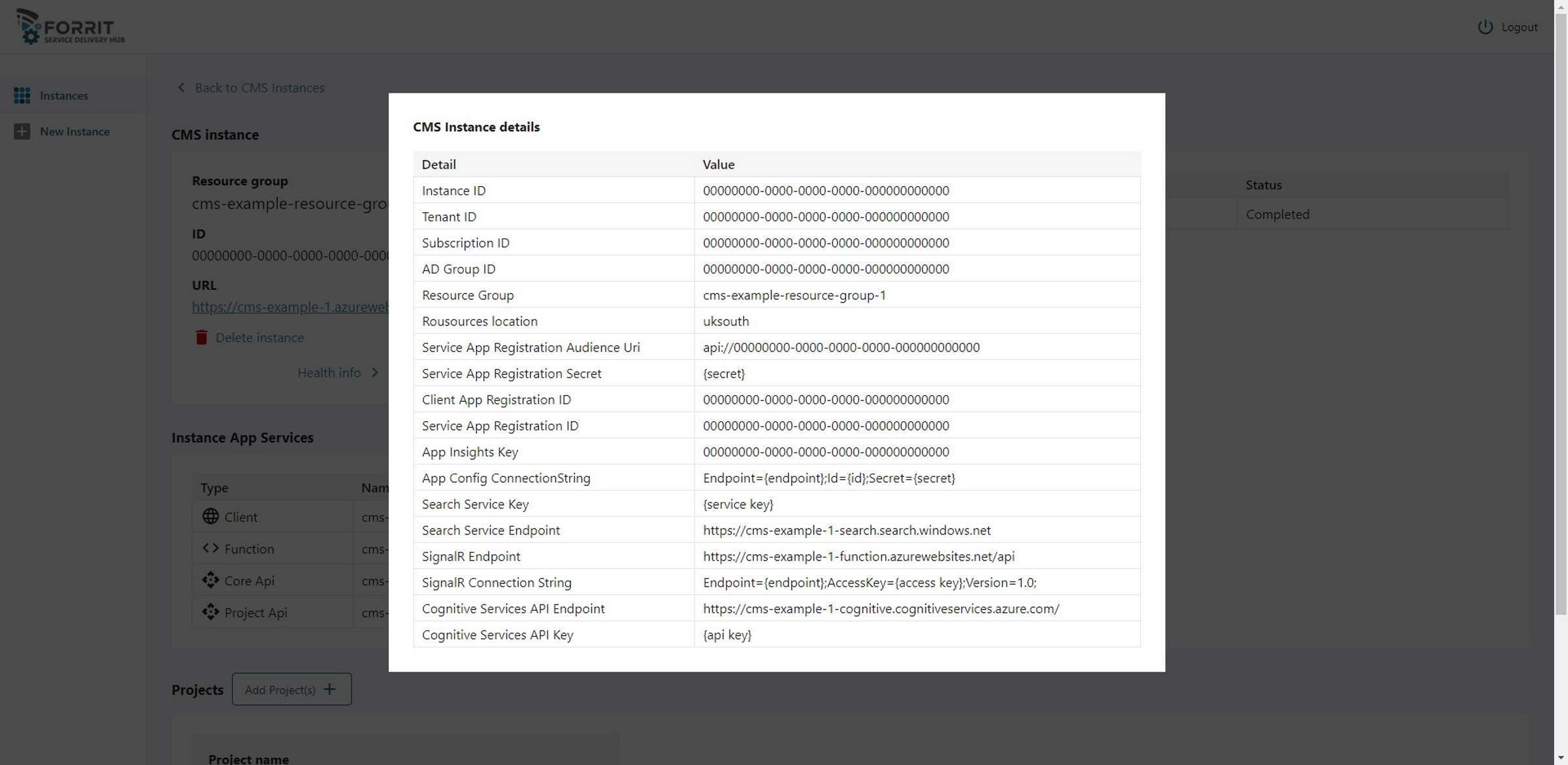
Details popup with all general information about the CMS instance including main non-project specific connection strings and all AD information.
Instance app services
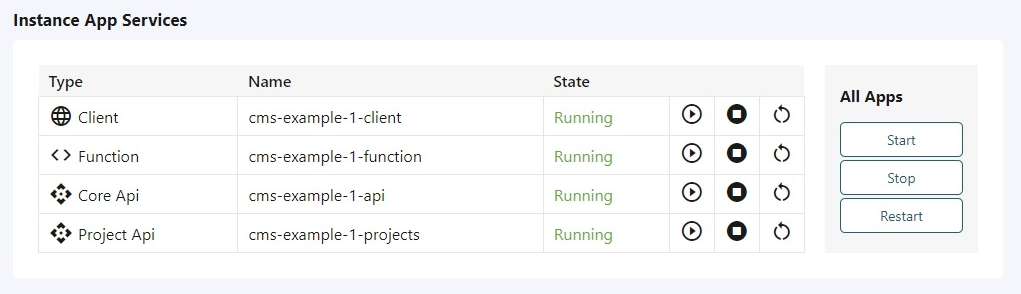
List of all app services, their current state (running or stopped). You can start, stop and restart each app individually or all at once.
Health info view
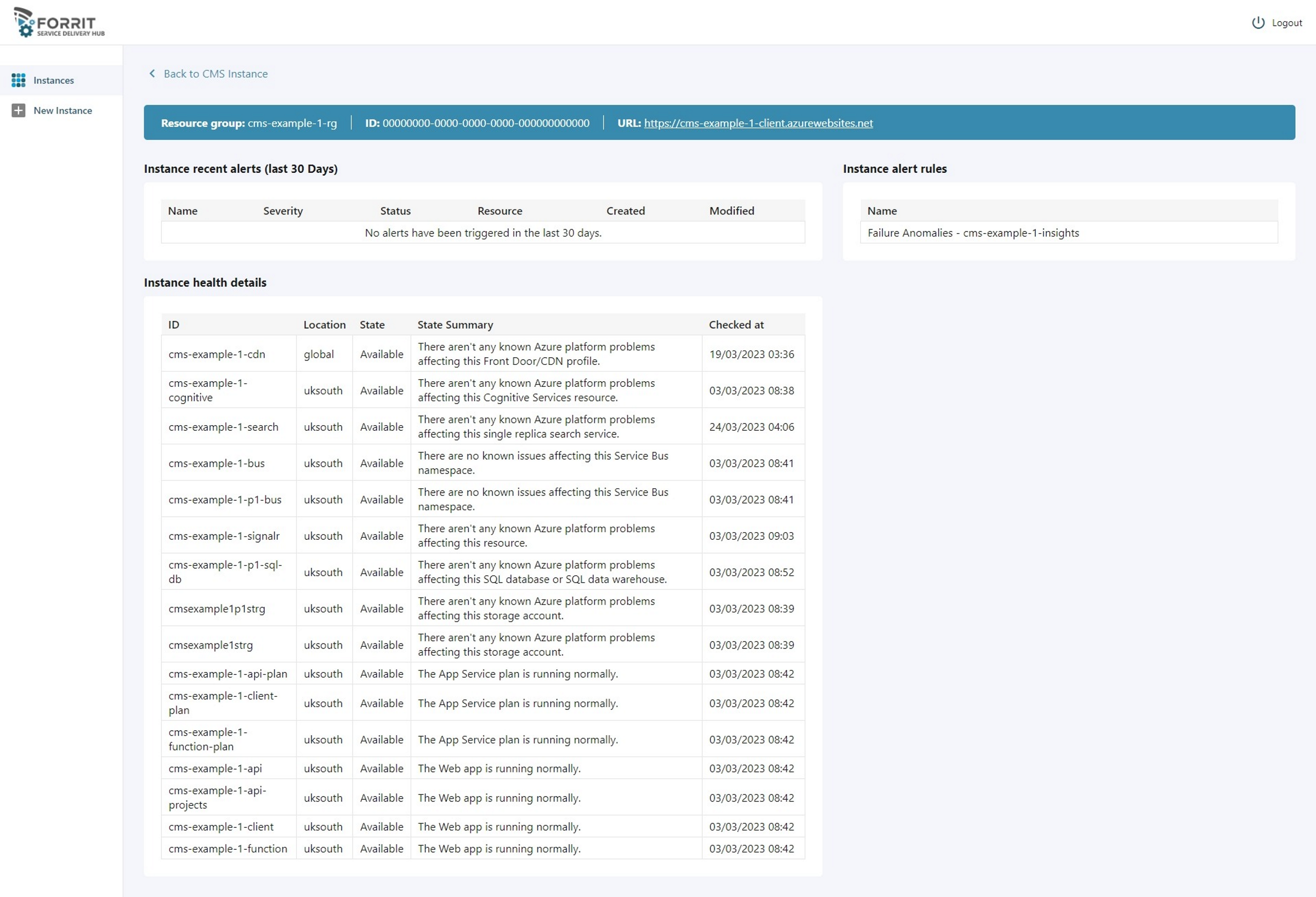
List of up-to-date issues that are affecting any resources within the CMS resource group.
Includes any alerts that are setup within the RG and health information for each resource in the RG.
Cost info view
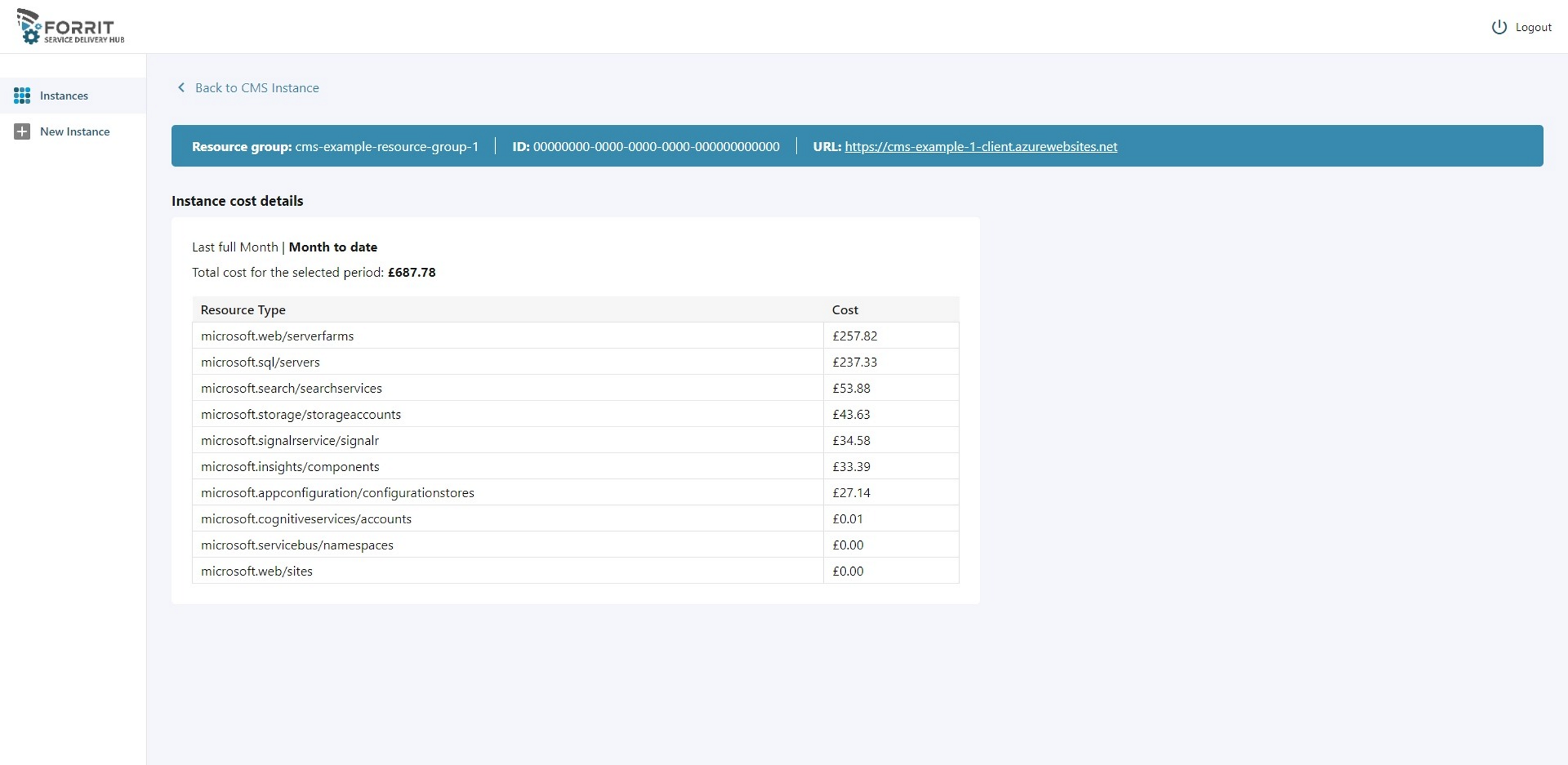
Cost information split into resource type and filterable by 'Last full month' and 'Month to date' (current month).
Security info view
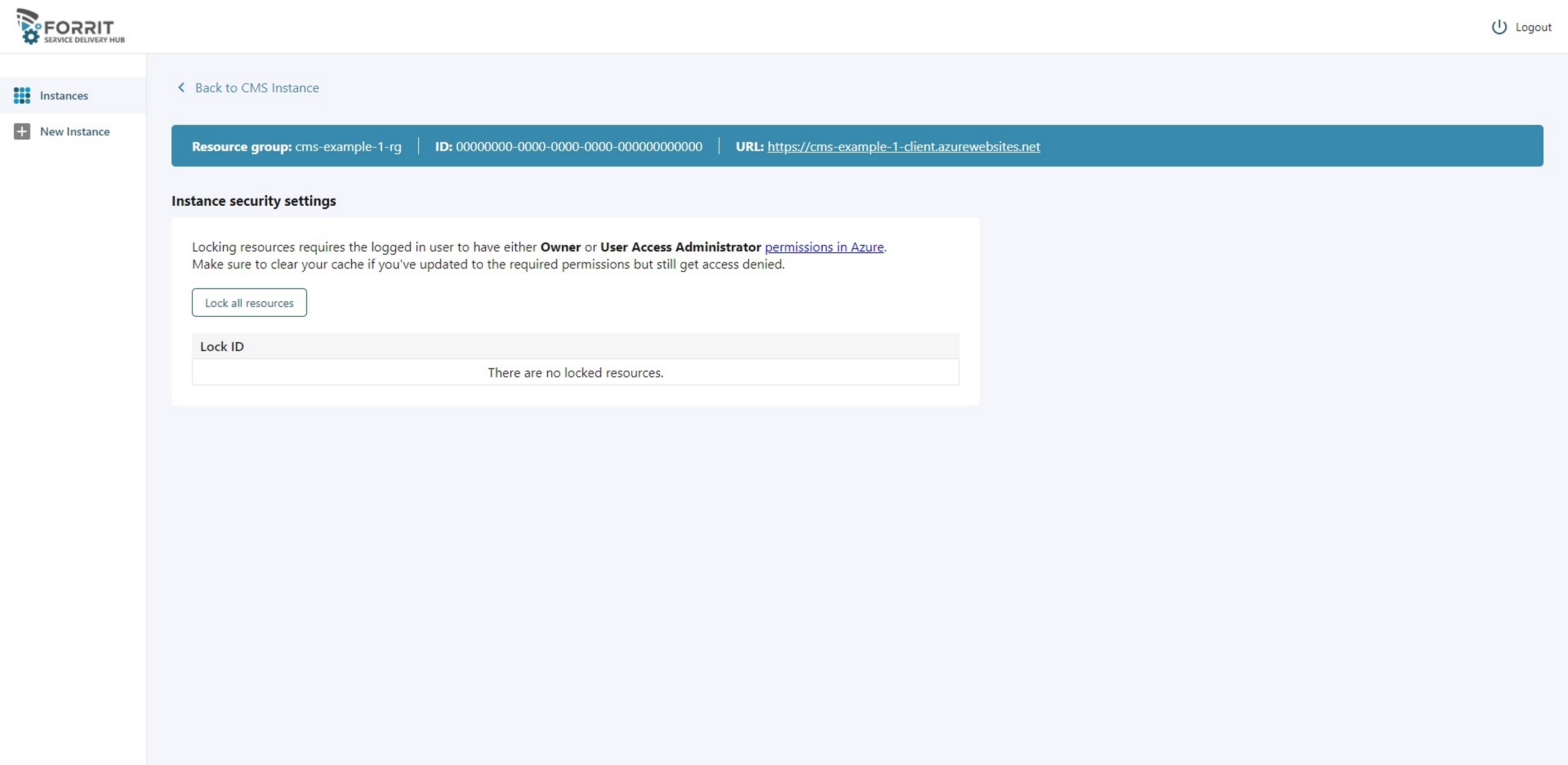
List of resource locks applied in the RG. If this list isn't empty, the CMS instance can't be deleted.
Manage versions view
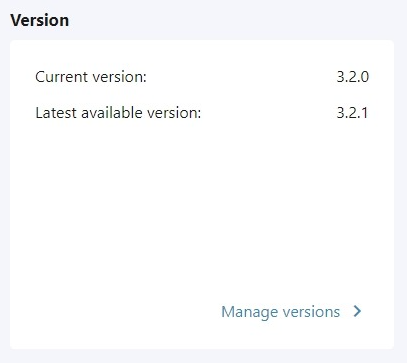
Overview of the CMS instance version and the latest available version.
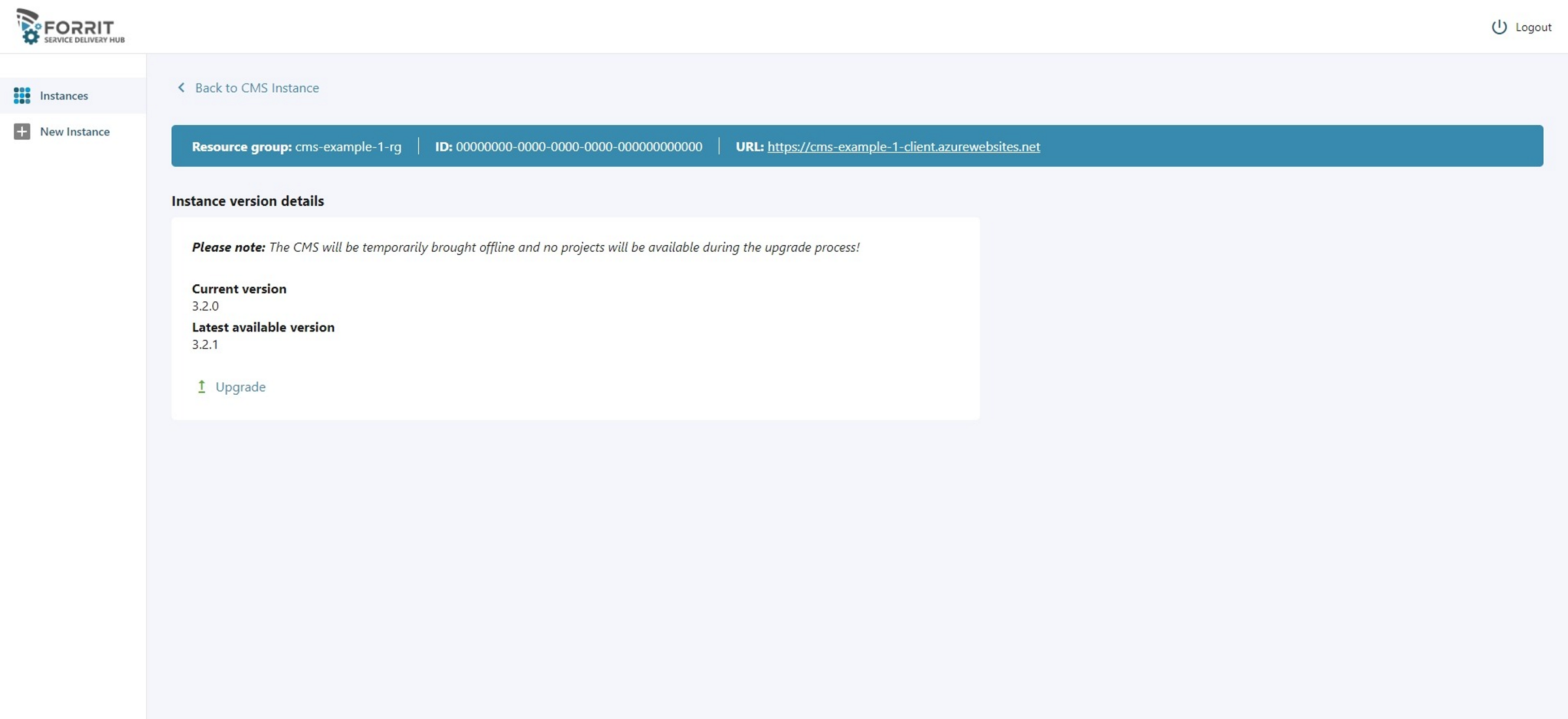
The manage versions view gives the option to upgrade your CMS version if there is a new version available. An upgrade process will submit an ARM template deployment and will lock the instance until the update is complete. It will also stop all CMS applications for the duration of the upgrade. The upgrade duration is dependent on multiple factors and there is no set duration and can vary considerably for a major or a minor upgrade. A simple revision upgrade should take about 10 minutes.
Logs view
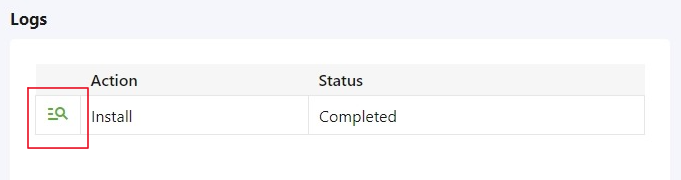

Logs view provides details about current state of running actions and deployments (installing a new CMS, upgrading, adding a project or adding a consumer app service) and potential errors that might occur with an option to re-deploy any failed deployments if possible to do so. Should a deployment fail repeatedly, please contact Forrit.
During a running action/deployment the CMS is locked and all actionable controls/sections are disabled and have the following message displayed:

Add projects view
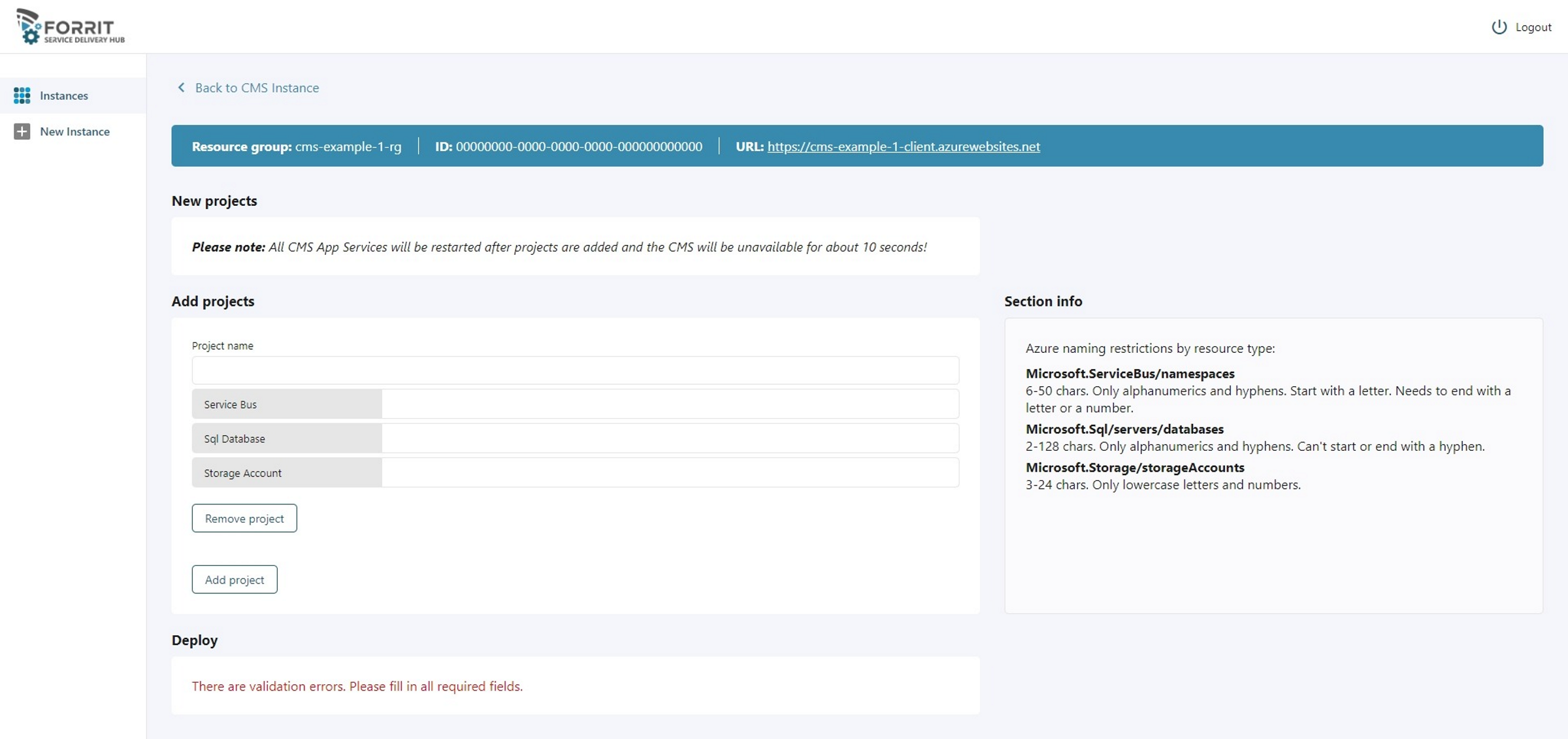
Add CMS instance projects and fill in all the resource names. Resources are validated against each Azure resource naming policy and for uniqueness within a resource group and Azure where applicable.
Notes/links:
Adding a project will restart all CMS App Service and the CMS will be unavailable for about 10 seconds.
Project details view
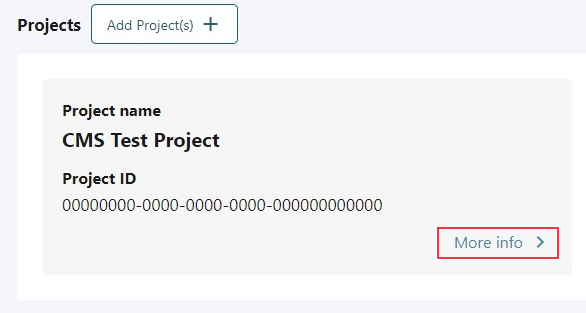
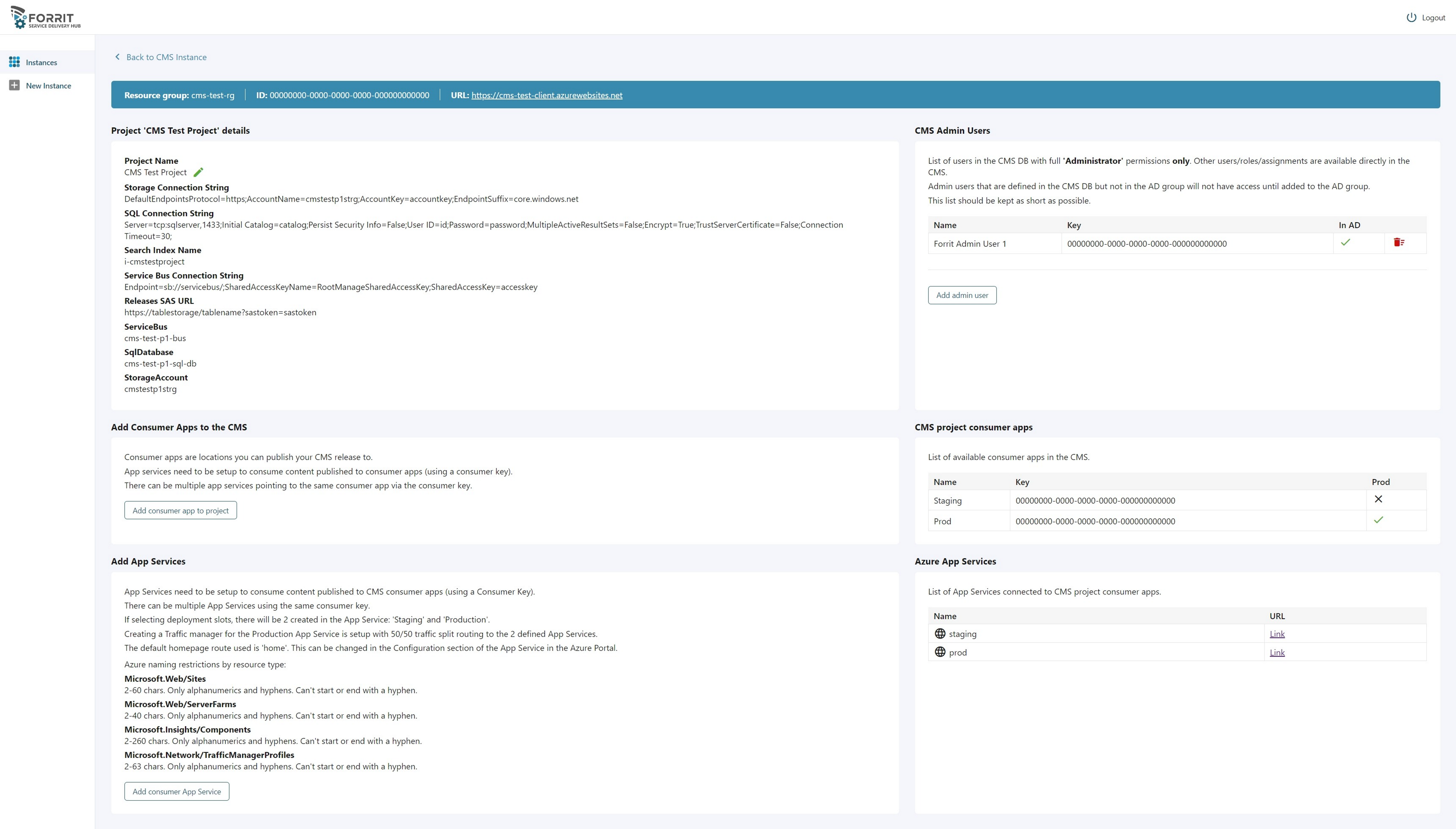
The Project details view has all project specific information along with connection strings.
CMS Admin users
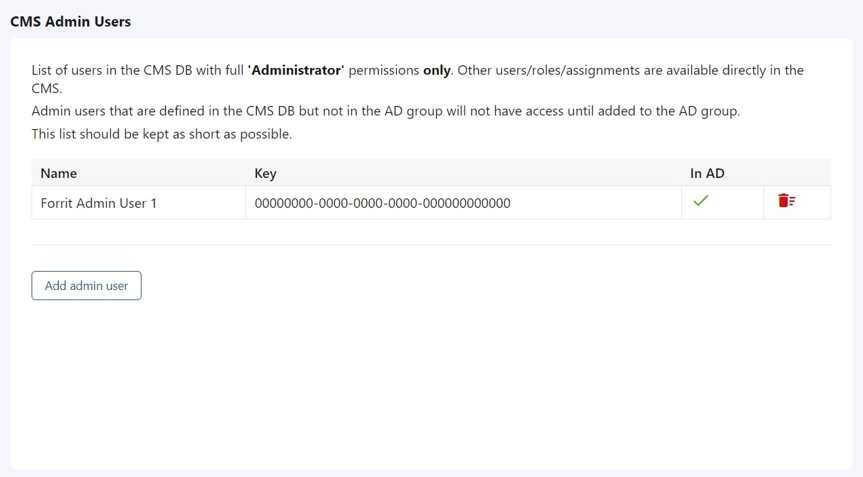
Shows the list of users with the full 'Administrator' permissions only (other roles are handled directly in the CMS) and gives the option to add CMS admin users from the Active Directory and sets the full admin permissions in the CMS.
Add Consumer App to the CMS/Project Consumer Apps
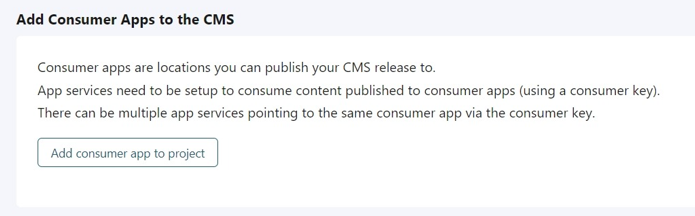
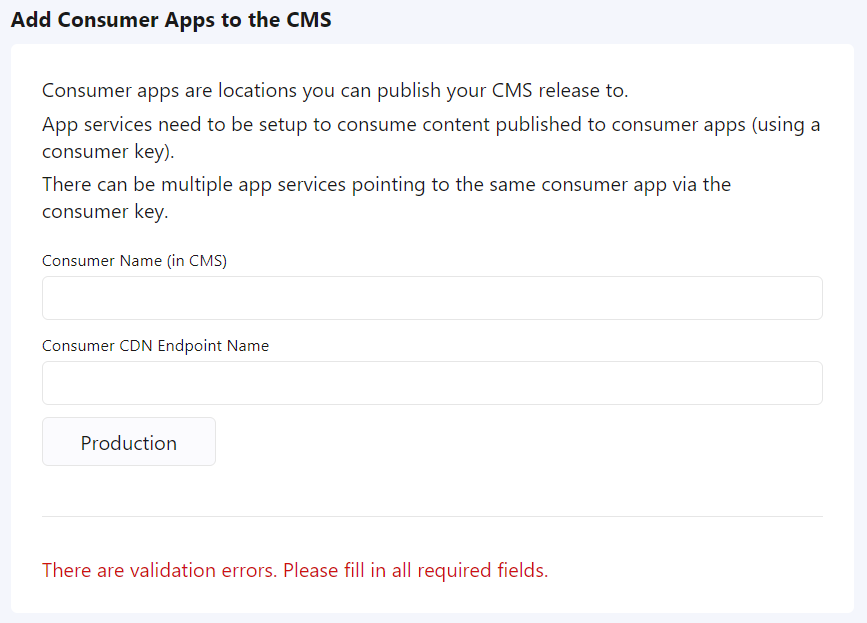

Consumer apps are locations you can publish your CMS release to.
App services need to be setup to consume content published to consumer apps (using a consumer key).
There can be multiple app services pointing to the same consumer app via the consumer key.
Consumer CDN endpoint name is validated against Azure resource naming policy and for uniqueness within a resource group and Azure.
Note/links:
At least one consumer app needs to be created in order to be able to create a consumer app service.
Consumer App Services
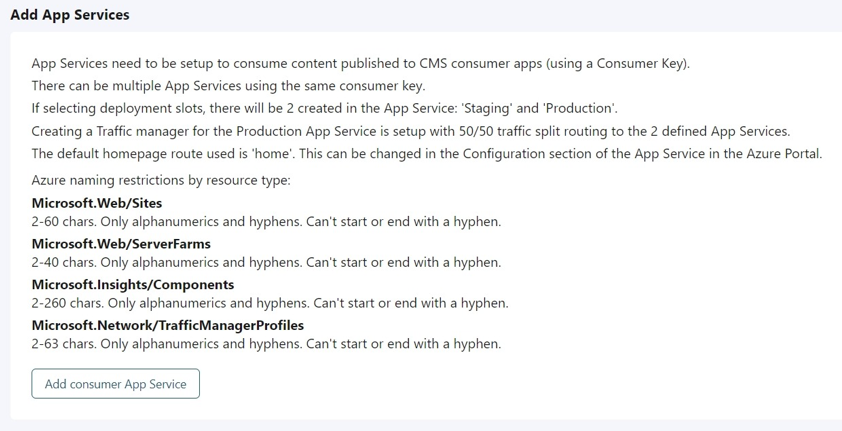
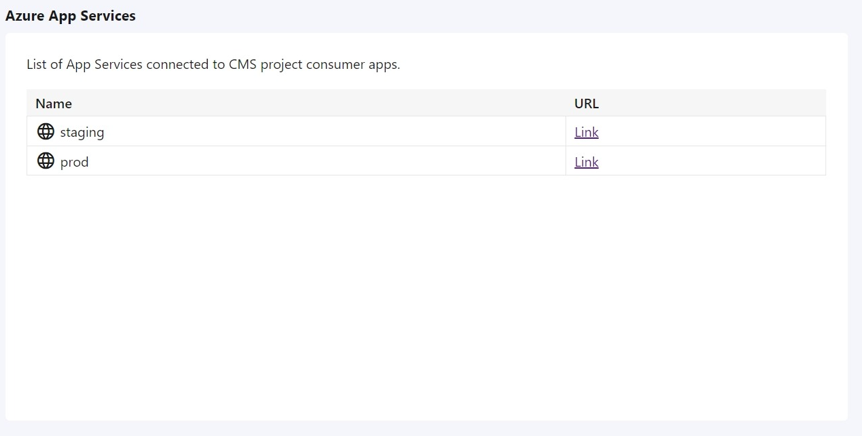
App Services need to be setup to consume content published to CMS consumer apps (using a Consumer Key).
There can be multiple App Services using the same consumer key.
If selecting deployment slots, there will be 2 created in the App Service: 'Staging' and 'Production'.
Creating a Traffic manager for the Production App Service is setup with 50/50 traffic split routing to the 2 defined App Services.
The default homepage route used is 'home'. This can be changed in the Configuration section of the App Service in the Azure Portal.
All App Service resources are validated against each Azure resource naming policy and for uniqueness within a resource group and Azure where applicable.