
Setting up a picklist in Data Feed Definitions v3.1
Purpose | The following guide demonstrates how to set up a picklist within a Data Feed Definition. |
Prerequisites | |
Supplementary |
Once you have created and setup your picklist, it can be applied as a data type within Data Feed Definitions. Follow these steps:
Using the left-hand side navigation menu, browse to Settings > Data Feed Definitions
Select an existing task, or create a new task
Select an existing DFD, or create a new DFD
Add a field to the DFD
Enter the name and optional description
From the Field Type dropdown menu, select Picklist or Picklist Collection
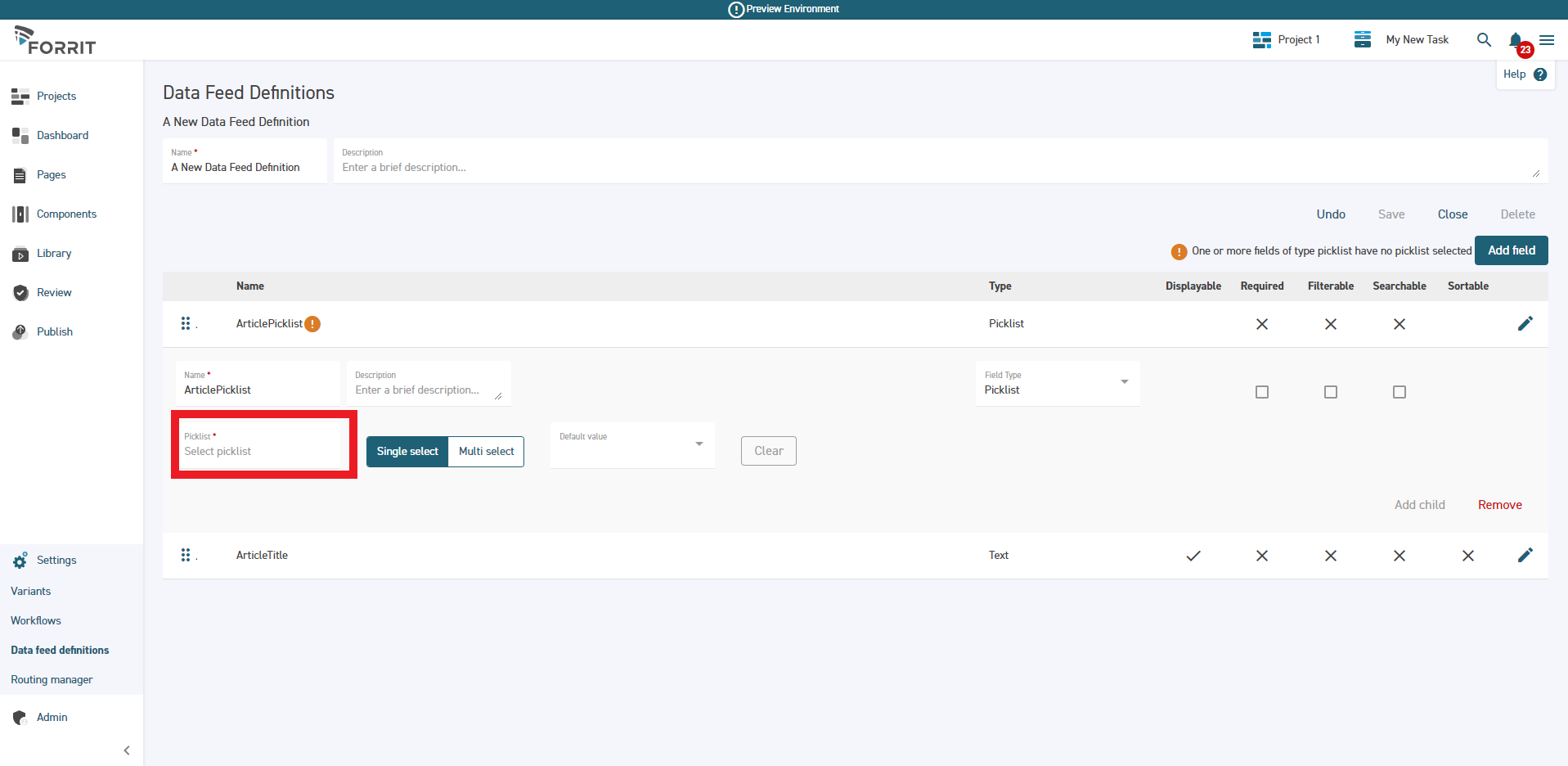
From the Picklist dropdown, select your desired Picklist
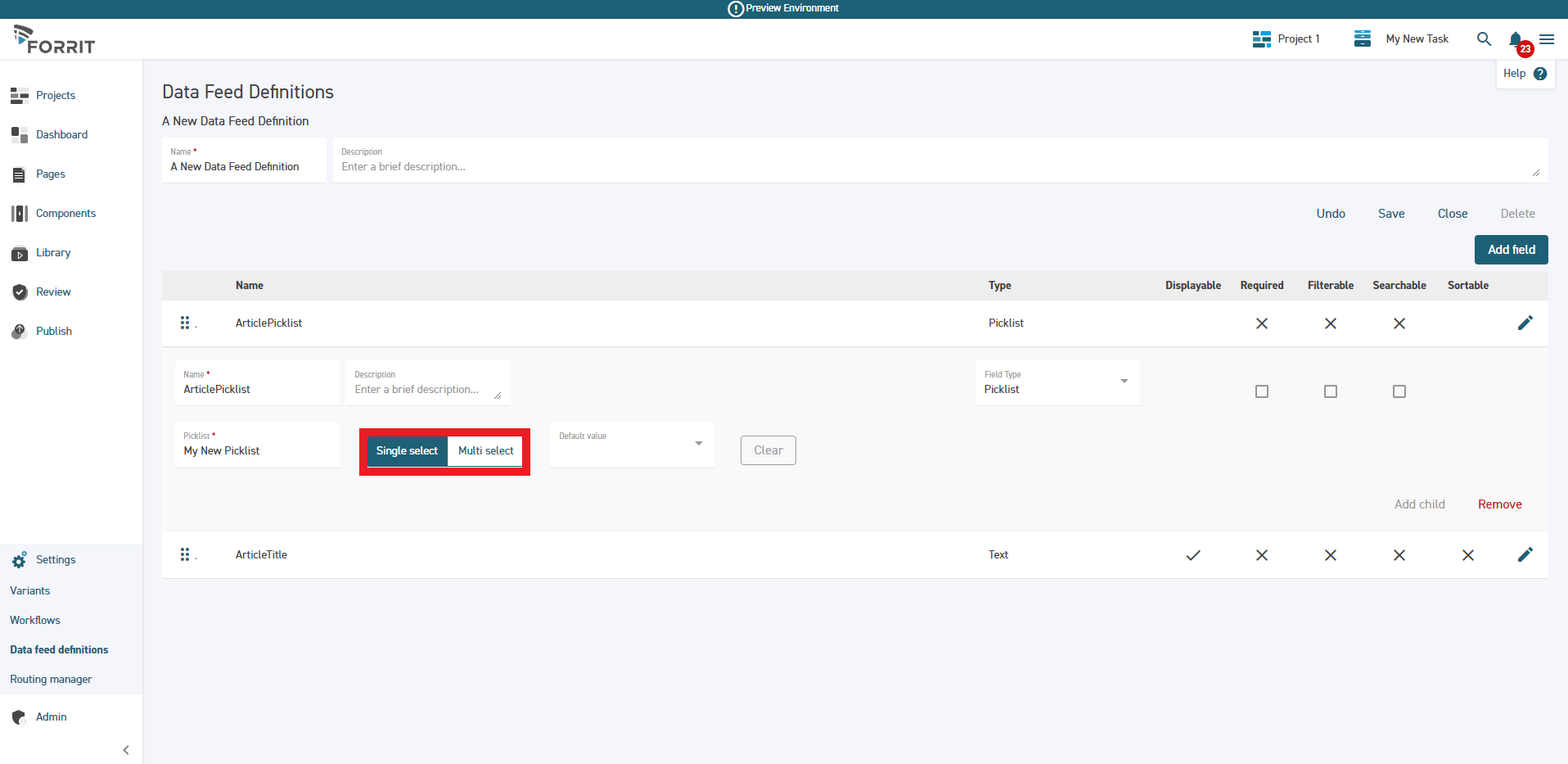
Depending on your requirement, select either Single select or Multi select:
Single select will allow you to insert the text value from one picklist item of your choosing during Data Feed Item creation & editing
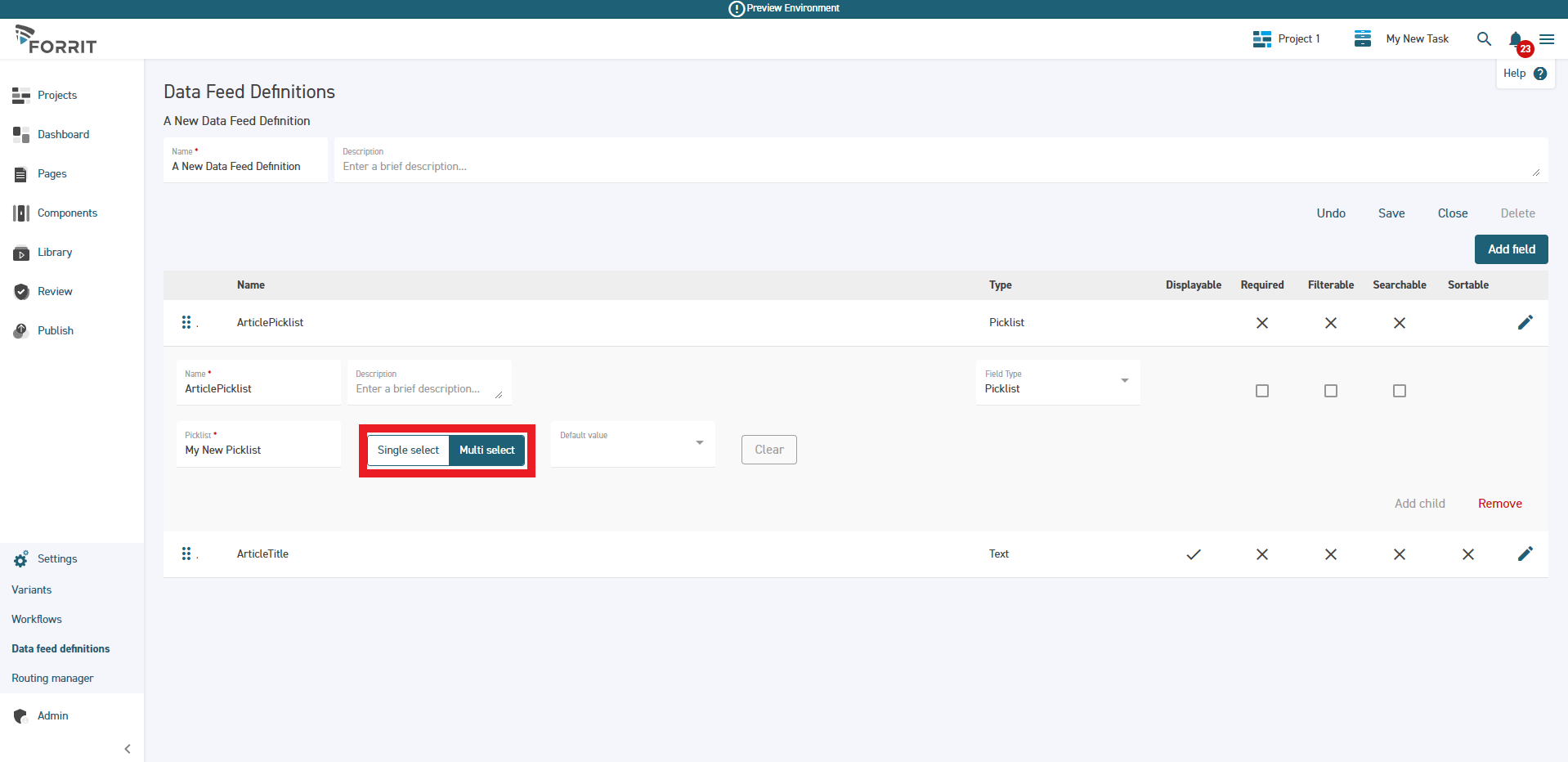
Multi select will allow you to insert the text value from multiple picklist items of your choosing during Data Feed Item creation & editing
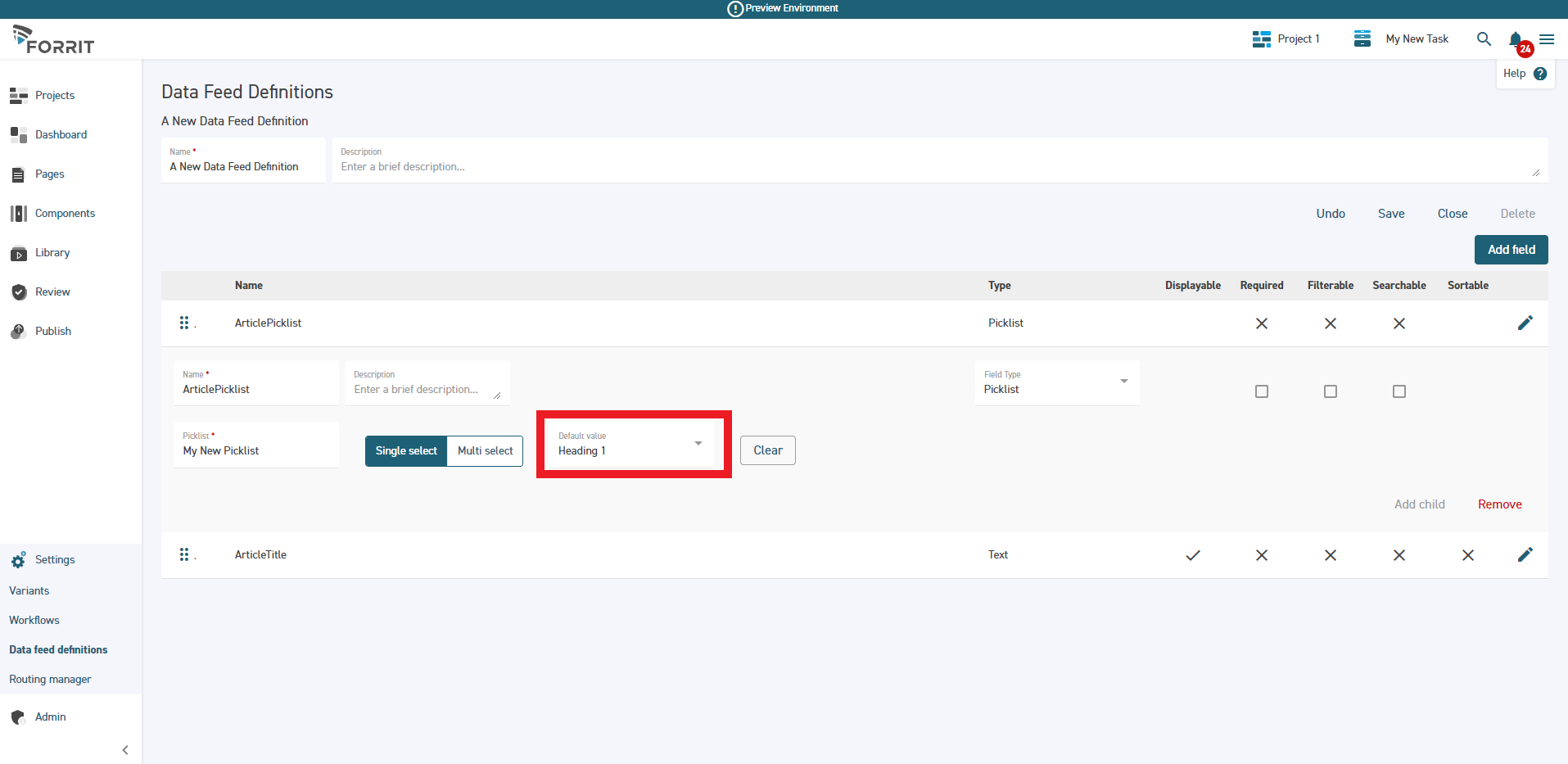
If required, select a picklist item from the Default Value dropdown to assign a default item
Once you are satisfied with your changes, select Save