
Replace, Edit or Delete a Media Item v3.1
Purpose | This work instruction explains how to replace a media item with another or delete the media item altogether |
Prerequisites | |
Supplementary | None |
Instructions
Media items can be modified from within the media library.
Navigate to the Media screen under the Library menu.
Ensure a task is selected.
Click on any media item to expose the details panel.
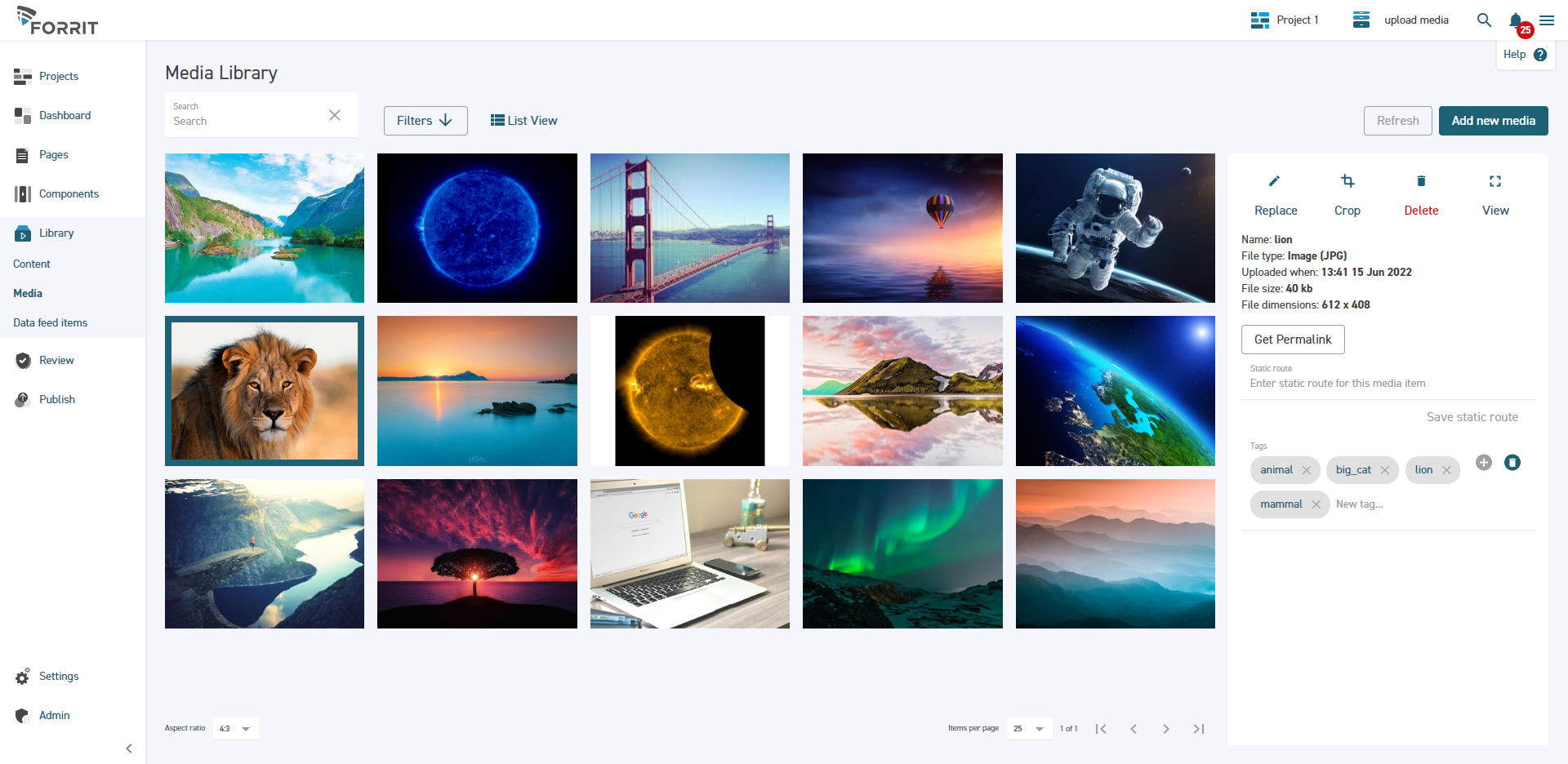
Replace a media item

When replacing a media item, it will be replaced on every page where it is used. Make sure that you want to overwrite the old media item.
Select the Replace button on the details panel.
Select a file. The file will replace the existing media item.
Delete a media item
Select the Delete button on the details panel.
As a precaution, you will be asked if you are sure you wish to delete the media item.
If you press Yes then the item will be deleted.
Edit a media item.
Things you can edit in media items include;
Cropping a media item
Changing the Static URL
Changing the tags
To crop a media file;
Navigate to the media library from the left-hand menu.
Select a media item, and when the side panel appears, select the crop icon
Inside the