
Work with Nested Components v3.1
Purpose | This work instruction will show how to create and work with nested components |
Prerequisites | |
Supplementary |
Overview
Nested components are a way to insert one or more components inside another. They are also called component templates.
This can be a useful way of reusing components. Sometimes placing one component after another does not give the desired behaviour, and one must be put inside the other.
Nested components behave mostly the same way as normal components. They may contain variables and are edited through the component editor, although they appear a different colour. When editing a page, they are dragged onto a page to the position where they are used.
Instructions
To create a nested component:
Navigate to the Components screen using the menu.
Ensure a task is selected.
Click Add new component.
Fill in the name and description and select the template toggle button to set up a nested component.
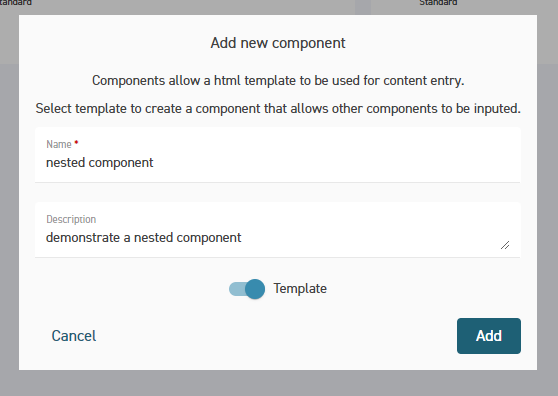
Select Add to open the component editor screen. Enter the HTML for the component.
The HTML below shows an example of a nested component.CODE<h2>@title</h2> <div class="@style"> <ctx-template name="TemplateSlot1"></ctx-template> <ctx-template name="TemplateSlot2"></ctx-template> </div>The component must contain a ctx-template tag with a unique name - this is how the CMS recognises template slots. You can add as many template slots as you wish.
Click Save once finished.
To add components to the nested component:
When editing components on a page from the Layout tab of the Page editor, drag the templated component to the required section of the page.
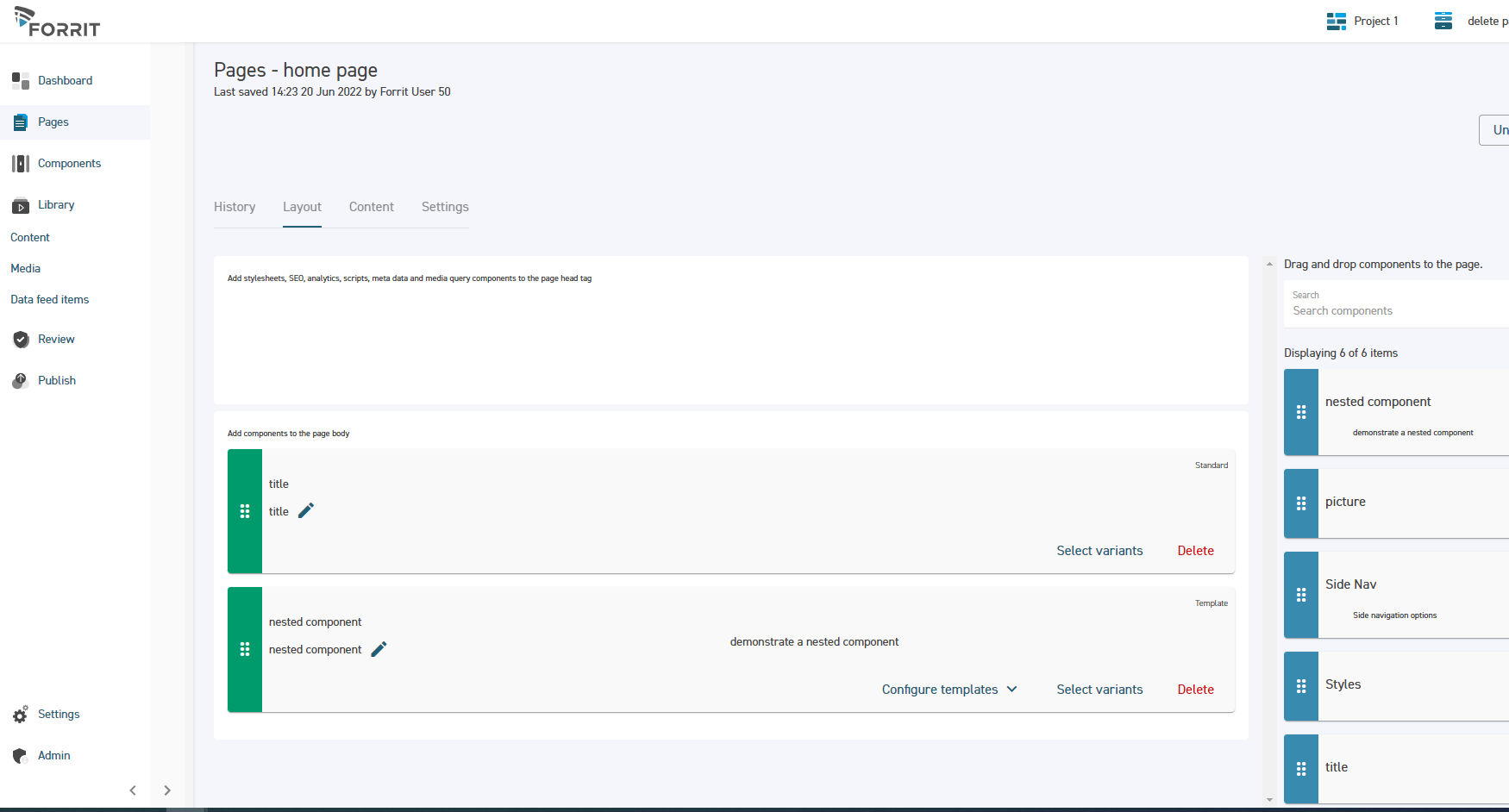
Click the Configure Templates button. This will display the template slot zones that were added in the component’s HTML.
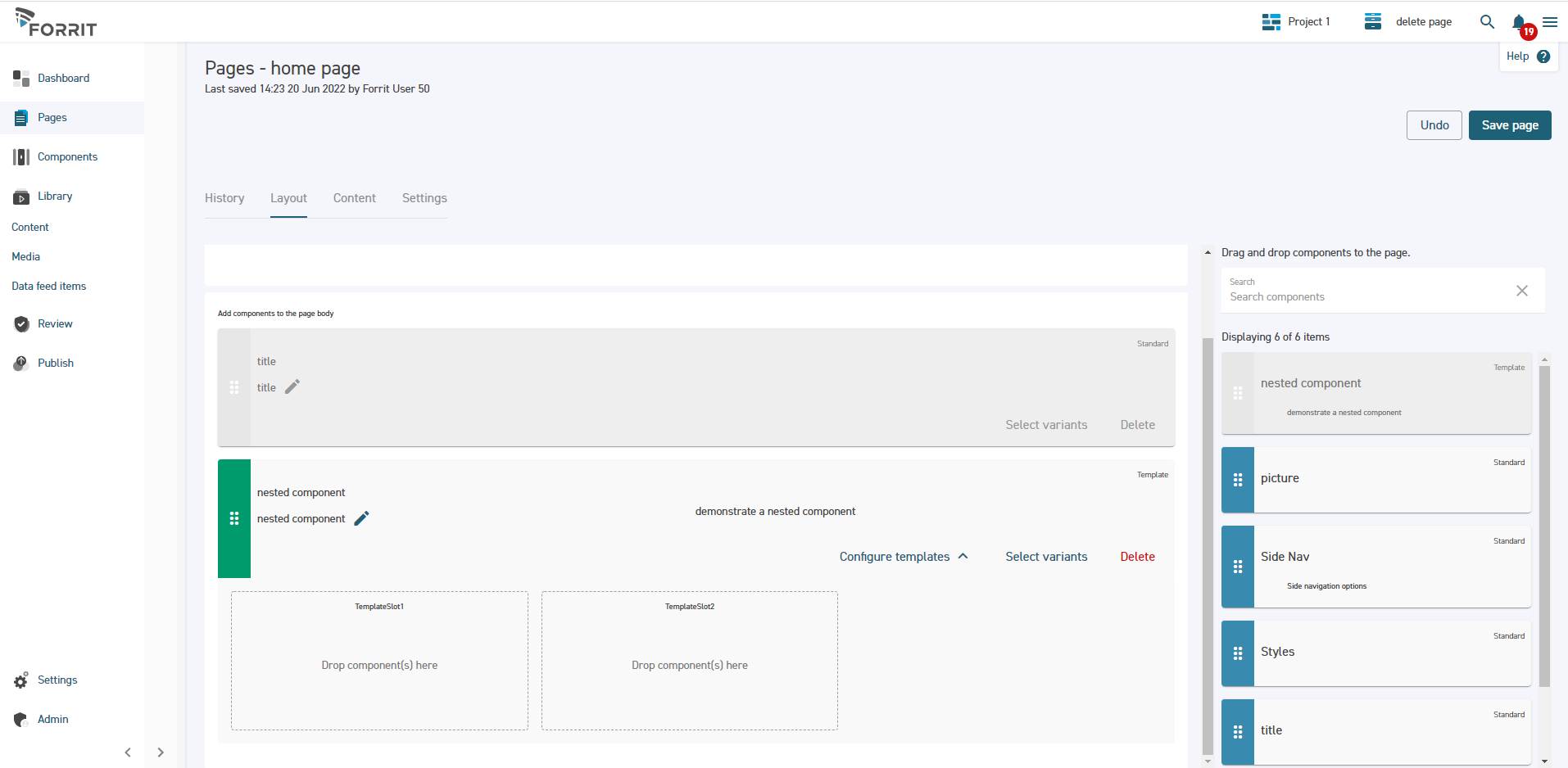
Drag and drop the components to be nested within the parent component to the appropriate template slot.
Click Save page.
Go to the Content tab to set the content of the nested components and view the page.
