
Administrators can enable icons in the Rich Text Editor
Using Icons in the Rich Text Editor
👥 User Journey
📋 Setup
Setup
Select Pages from the side menu
Select a Task
Select a Page
Select the Content tab
In the header bar, click the expander arrow if the filter options are hidden
Select a Locale and Variant
Select a Component with Rich Text from the list on the right-hand side
📘 Steps
1️⃣ Click the Insert Fontawesome Icon button (shown below)
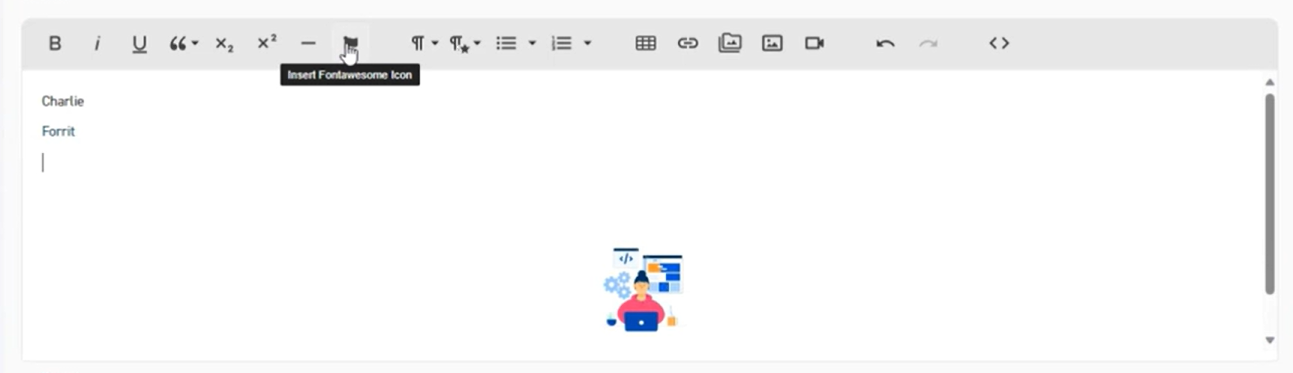
If you cannot see the above button, then your administrator needs to enable icons
2️⃣ [Optional] Search for an icon
3️⃣ Select an icon
4️⃣ Select a colour
5️⃣ Click Insert
🔖 References
-
Page Content Editor – learn how to use the Page Content Editor
-
Media Library – learn how to use the Media Library
-
Rich Text Editor configuration – administrators can enable and configure Rich Text Editor features